No chapters found. Try another word or clear your search.
The studio, stages and roles
BENARI Audio Theatre is the creative studio within BENARI: write scripts, assemble a company, organise recordings and release audio drama to listeners in the same app. Recording, music and mixing happen in the studios and software your team normally uses; BENARI connects people, materials, decisions and release. See Audio Theatre for an introduction.
The creators own the production and master recording. BENARI provides tools and a stage and receives a licence to present and sell the work. Production leads and the producer decide on the team, terms, schedule and partners.
- Team building: casting, role offers, credits, agreements and company economics.
- Production: scenes, tasks, rehearsals, recordings, music, editing, mixing and discussion.
- Review: the master is delivered to BENARI; a catalogue edition is created and checked.
- Premiere: BENARI sets the date and listening opens that day.
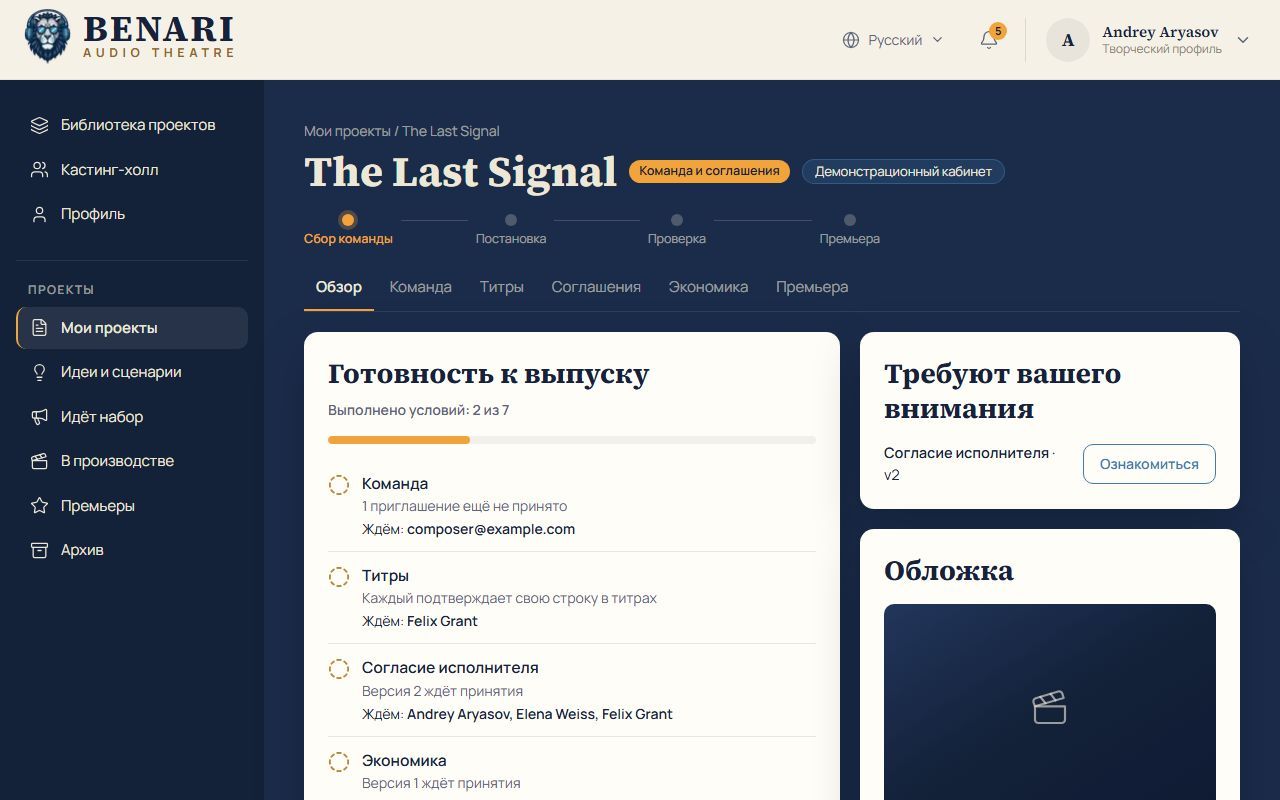
The project header shows the stage, which the BENARI team changes. Release requires seven readiness conditions.
- Guest: views public pages; signing in is required to apply.
- Creator: a signed-in user with a creative profile. Applying makes them an applicant; accepting an invitation or offer makes them a participant.
- Project lead: manages project information, artwork, casting, offers and membership.
- Producer: a lead coordinating people, resources and promotion; usually also the company fund recipient who pays out shares.
- BENARI: creates the edition, reviews the release and schedules the premiere.
Writers and dramaturgs shape the story; directors shape the artistic approach and work with actors; actors and narrators perform; composers create musical dramaturgy; sound engineers and designers handle recording, editing, mixing and the sonic setting. An editor, cover artist or promotion specialist may join. One person can hold several roles.
Sign-in, navigation, notifications and mobile
Open the BENARI studio with the same account and password as the BENARI app. An existing BENARI sign-in is recognised. Without an account, choose account creation on the sign-in page. Signing in from a role link returns you to that role.
The header beside the bell switches between Russian / English, the studio interface languages in this edition. Project titles, descriptions and texts remain in their authors' language.
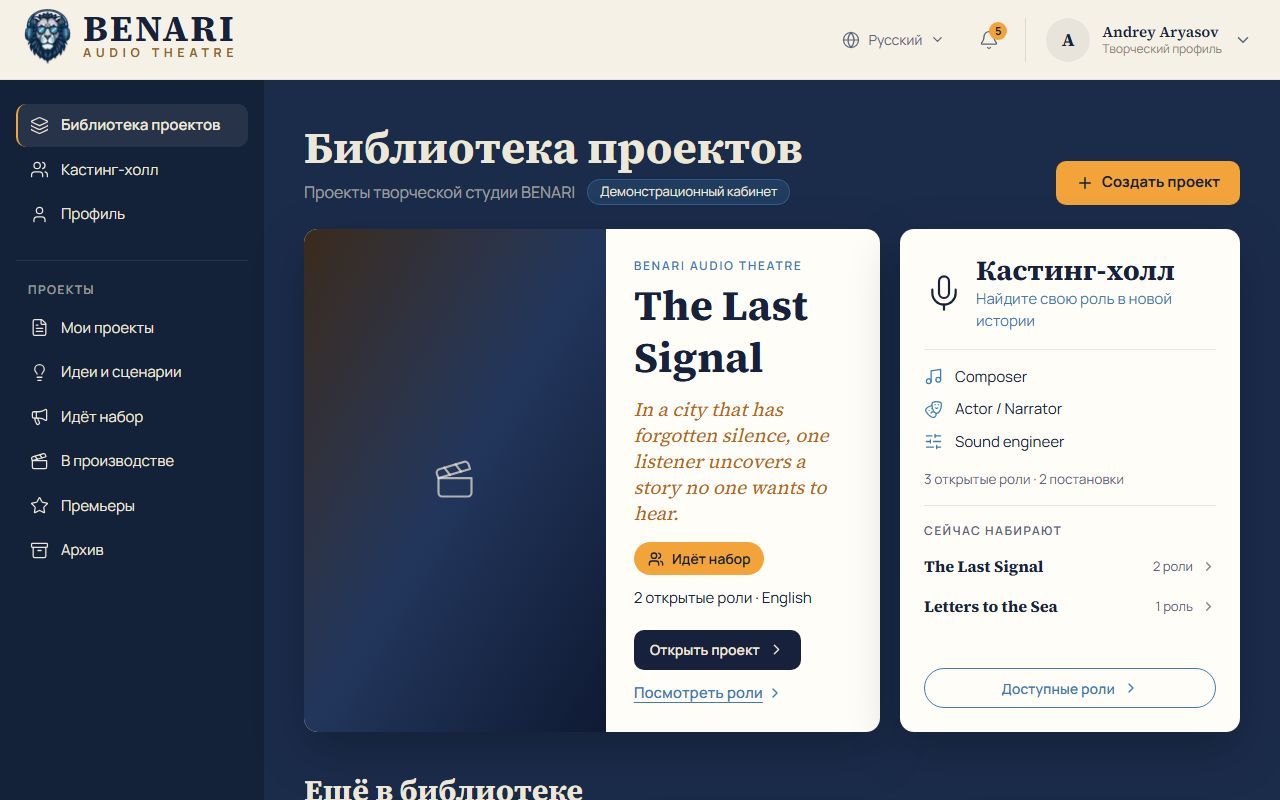
- Project Library: home, projects, Create project and a casting overview.
- Casting Hall: roles, applications, invitations and saved items.
- Profile: portfolio, experience, documents, visibility and email.
- My Projects: productions you join or lead.
- Ideas & Scripts: your work and work shared with you.
- Now Casting: public calls, your calls, candidate inbox and search.
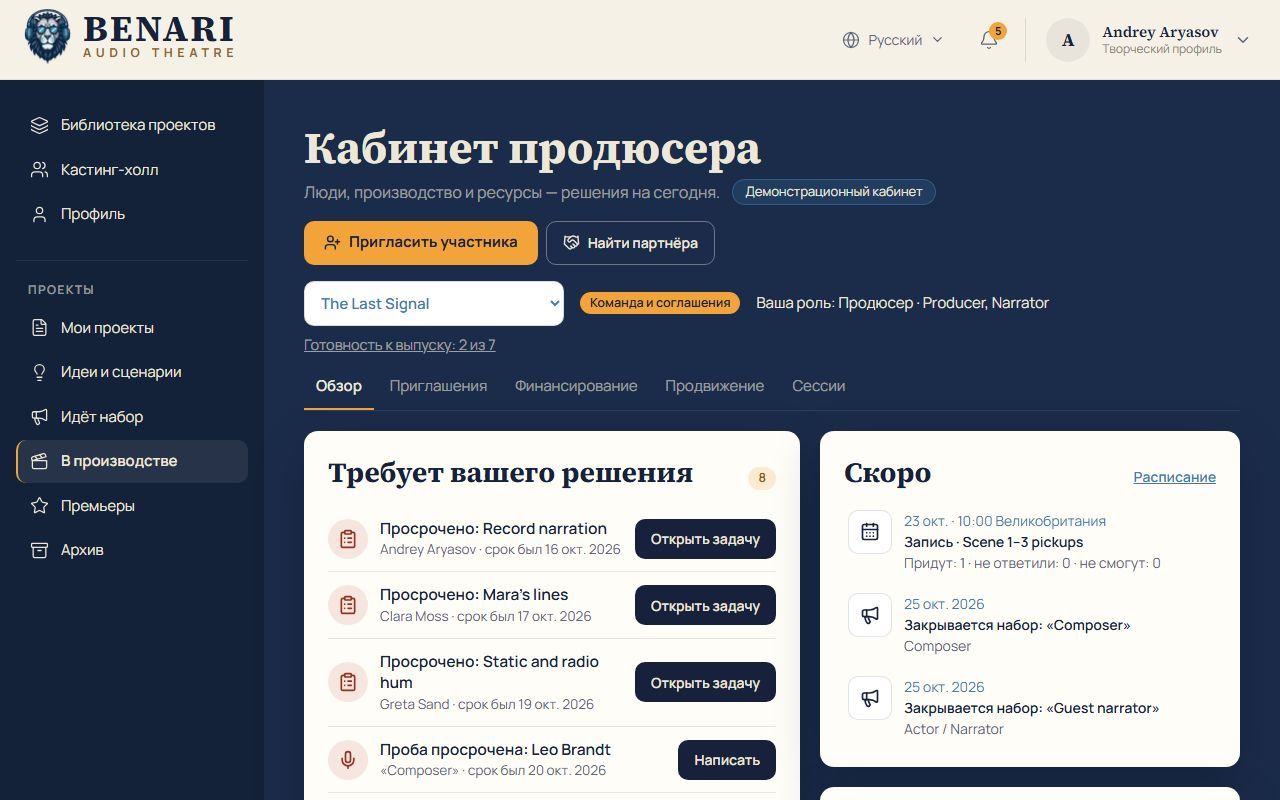
- In Production: tasks, materials, calendar, messages and the producer workspace.
- Premieres: released and upcoming work.
- Archive: past projects, ideas and scripts, with search and a reason filter such as production withdrawn. Only you see your archive; work can be restored.
BENARI Catalogue at the menu bottom returns to the app. Help and Settings are inactive in this edition. Your account menu is at the top right.
The bell reports invitations, audition requests, role offers and revisions, replies, project events and saved-role changes. Its number counts unread items. In Profile → Profile visibility → Email, enable emails about your productions and send a test message if needed. Messages go to the address used to invite you to each production. Emails about discussions, tasks, takes and meetings are spaced at reasonable intervals; your own actions never trigger an email to you.
On mobile, navigation becomes a button strip below the header, columns stack and role, application or task details open on their own page. If a button seems missing, scroll down: the right column may be below the left.
Public pages and sharing
Guests can open the studio home, Casting Hall with open roles and a complete role call: project, role type, working format, deadline, terms and application materials. Apply takes guests to sign-in and then back to the role.
A guest sees the project's public face — title, logline, cover, language, open roles and estimated premiere — only when it has an open call or a scheduled or past premiere. This page excludes membership, credits and scripts. Creator profiles are unavailable to guests. Applications, teams, production and the producer workspace require sign-in and permission.
On a project or role page, choose Share: copy link, WhatsApp, Telegram, Facebook, X, email or Other apps through the phone's share menu. Link previews show the title, description and square poster; without a cover they show the theatre symbol.
Messaging apps cache previews. A cover added after a link was shared may take time to appear. Use Share → Copy link. In Telegram, send the link to @WebpageBot to refresh its preview.
Your creative profile and portfolio
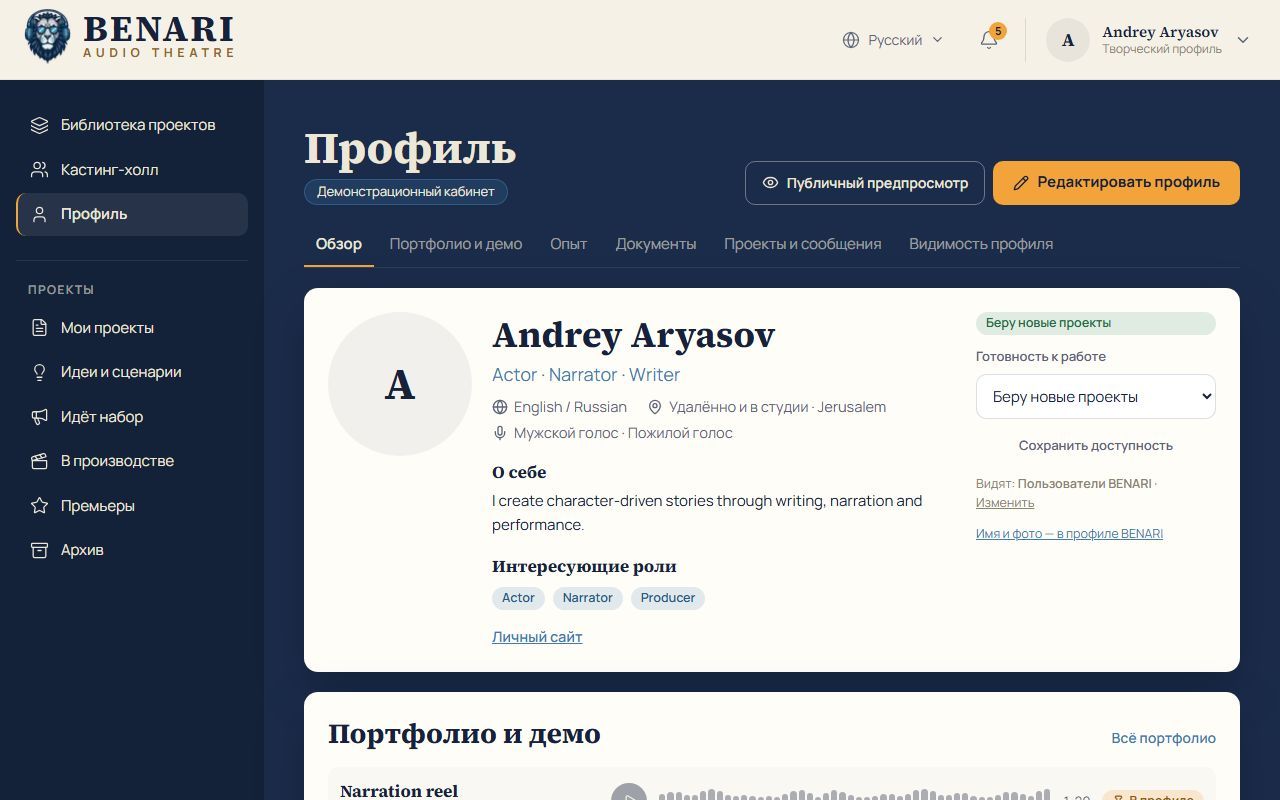
Open Profile: casting teams use it when reviewing applications and finding people. Edit profile to set roles, languages, voice details, biography and links. Your name and photo come from your BENARI profile.
- Overview: summary and availability — taking new projects, taking suitable projects or not taking projects. Save availability.
- Portfolio & Demos: audio up to 300 MB, video up to 1 GB, photos and text up to 20 MB. Choose which work appears in your profile and which to attach to applications.
- Experience: projects, training, skills and availability for online sessions with a director. This information feeds your CV.
- Documents: CVs, biographies, certificates, project files, agreements, other files and Shared with me.
- Projects & Messages: your productions and their correspondence.
- Profile visibility: profile access, candidate search and production email settings.
Public preview shows what other users see. Actors may supply voice demos and a requested extract, composers examples of music, and sound specialists examples demonstrating space and intelligible speech. Follow the materials requested in each call.
Documents, CVs and visibility
New documents are private. In the document card choose Only me, Selected people, Project team or Everyone in BENARI. Project team means members of the linked production; everyone means signed-in users. Filter documents by project, category and visibility.
Selected people receive access in addition to the general setting, even to a private document. You can add only participants from your productions; they receive a notification. Revoke access whenever needed. A document supports up to 20 versions; after that, upload a new document. Shared with me lists documents other people shared with you.
Create CV from experience builds a page using your profile, experience and BENARI credits. Updating those details updates the page. Save it as PDF, upload it to Documents and attach it to applications.
Profile visibility offers Available to everyone, BENARI users or Only me. In this edition the first two mean signed-in users: guest profiles are not open yet. Only me hides your profile and removes it from casting search.
Separately choose who may find you: any BENARI user, project teams and casting contacts only, or nobody. Search never reveals contact details; teams can invite you to apply. Once you apply, the team sees the profile as submitted with that application.
Find and save a role
The Casting Hall has four tabs. Available roles shows recruiting projects — places and roles, casting dates and estimated premiere — followed by open roles. My applications holds your applications. Invitations holds invitations to apply, audition requests and offers; its count means items waiting for your response. Saved lets you keep a personal note and enable notifications about deadline, payment or casting-status changes.
In Now Casting, select project, role, working format — remote, in-studio, or remote/in-studio — and participation model: revenue share, fixed fee, fee plus share, hourly payment, unpaid or terms to discuss. Apply the filter.
A coloured strip and label indicate your relationship: your production, draft application, applied, audition requested, offer awaiting response, on the team or not this time.
Check the role page for project, name, type — lead, supporting or episodic — and number of places. It lists language, working format, production stage, deadline with time zone, publication date, what you will create, terms and application requirements. Save and Share are here. Leads see casting controls and application counts on the right; applicants see Apply.
Applications, auditions and conversation
- Open the role and select Apply.
- Tell the team why this role and what you bring.
- Set your availability — can start now, available soon or discuss with producer — working format and payment expectations: as offered, discuss terms or your own proposal.
- Attach selected portfolio work and documents such as a CV.
- Submit. Until then the draft is visible only to you.
My applications has All, Action required, Drafts and Archive. Each application states the next step.
| Status | Meaning or action |
|---|---|
| Draft | Continue on the call page. |
| Under review | The team has received it; await a reply. |
| Shortlisted | You are being seriously considered. |
| Audition requested | Read the brief and deadline; upload and send your recording in the application on time. |
| Team invitation | Review the role offer. |
| Not this time | The team chose someone else. |
| Withdrawn | You withdrew your application. |
Ask questions in the application's conversation; replies appear there and in the bell. You can withdraw while no decision has been made.
Review an offer and join the team
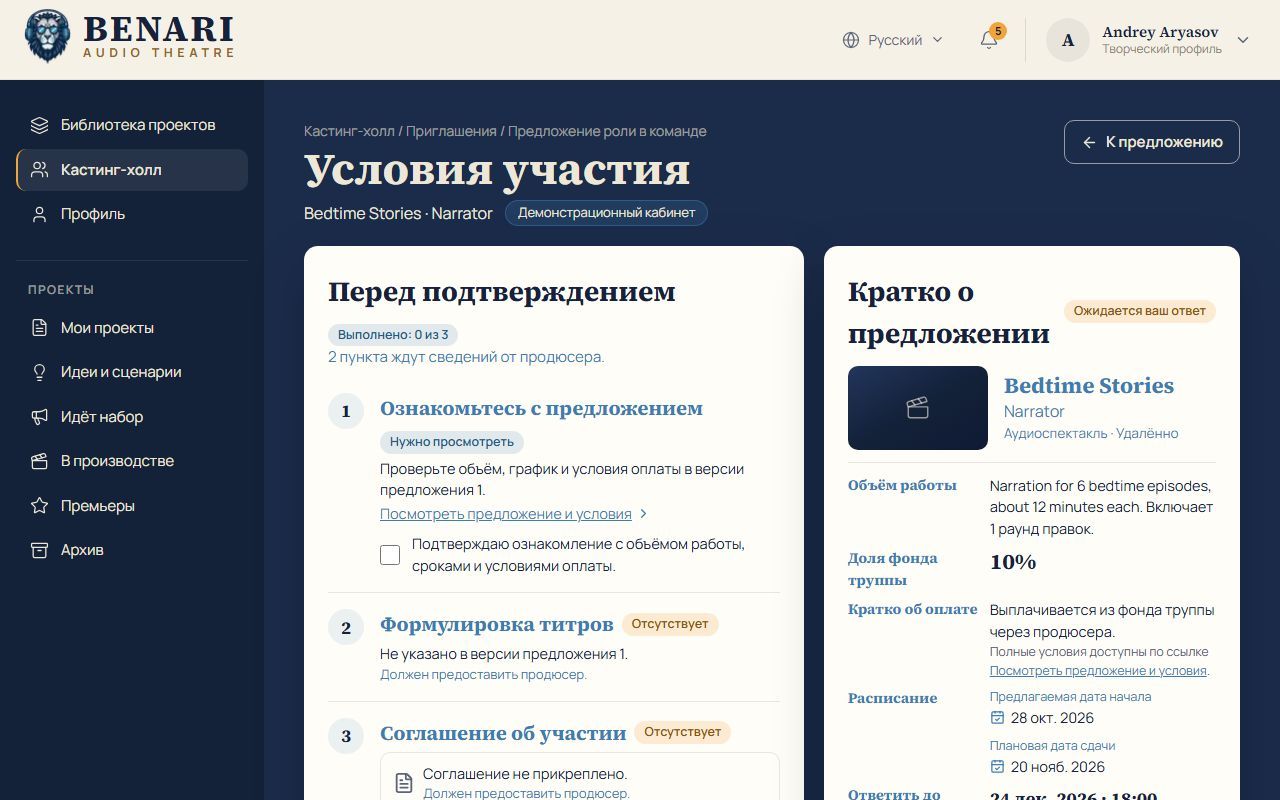
An offer states scope, revision rounds, working format, start and delivery dates, compensation and payment arrangements, credit wording, a PDF or Word participation agreement and a reply deadline with time zone. Models include revenue share, fee, fee plus share, hourly pay and unpaid participation. The producer distributes fund shares; monetary amounts are in pounds sterling.
- Open the full offer and acknowledge its scope, dates and payment.
- Check your credit name and role.
- Read the participation agreement covering recording, rights, timing and payment.
Missing / Provided by producer means the producer has not added that item. Ask a question sends a request to the application conversation. Confirm participation adds you to the team, project, production and credits. Decline closes the offer and informs the team.
The latest sent version applies. If the team updates terms before you answer, Casting Hall notifies you; review them again. Existing members can accept another role, which is added to their current roles.
After joining, confirm your credit line and performer consent, and accept company economics if you have a share. A lead accepts the platform licence. The project overview's Needs your attention card collects your outstanding actions. A new document version requires fresh acceptance.
Ideas, scripts and versions
Ideas & Scripts has All work, Ideas, Scripts, Shared with me and Archive, with status/language filters and sorting. Idea statuses are Concept and In development; script statuses are Draft and Ready for project. Create work or Import script for an existing text. Set title, logline, genres, language and status. Each save creates a version; previous versions remain.
New work is private. Give specific people edit, comment or view access. Shared work appears under Shared with me with the person who granted access.
To split a script into scenes, start each scene on a separate line whose first word is SCENE, its Russian equivalent shown in the source interface, INT. or EXT.. For example:
SCENE 3 — The lighthouseThe number and name come from that line. Write dialogue, pauses, spaces, sound events and musical transitions into the audio script so the team shares the same reference.
Create a project from the work, or link it to a project you lead. Its team can then read it and use its scenes in production. Archived work is visible only to its owner: shared links and team access stay closed until restoration.
Create a project, invite people and confirm credits
Select Create project in Project Library. You become a lead and can invite people immediately. Project tabs are Overview, Team, Credits, Agreements, Economics and Premiere. Leads edit; other members read and complete their own confirmations.
In Team, create an invitation link. It is single-use and displayed only when created; pass it to the person yourself. Invitation sent remains until they personally accept; only then are they active. Casting and role offers provide another route into the team.
Joining through an offer does not grant management rights. Leads can change project information, cover, calls, offers and membership; every project must retain at least one lead.
In Credits a lead adds the person, role, character for actors, credited name and order. Each person can appear only once in the same role. Everyone confirms their own line; unconfirmed lines remain hidden publicly. If a role is missing from public credits, check this tab. Your role is also shown in the project, overview and In Production.
Agreements, economics and seven release conditions
A lead publishes versions of Performer consent, Company economics and the Platform licence. Every participant accepts consent; every share holder accepts economics; a lead accepts the licence for the company. Acceptance records its date and version. New versions replace old ones and must be accepted again.
Consent covers the participant's work in this production and promotional extracts. Recording participation alone does not permit voice cloning, model training or synthetic replacement: these require separate, explicitly recorded consent. AI-assisted music can be used if the tool and material licences allow distribution and monetisation within the drama; discuss the choice with the team.
Ticket revenue is split between the platform and company fund under BENARI terms recorded in the economics version. A lead allocates fund shares totalling 100%. Each person's percentage of the fund and equivalent percentage of net revenue are visible. A fund recipient must be a project lead: BENARI transfers the entire fund to them and they pay each participant. Everyone sees the distribution. Use Agreement in words to explain the arrangement plainly.
| Condition | Complete when |
|---|---|
| Team | All invitations are accepted. |
| Credits | All lines are confirmed. |
| Performer consent | All members accept the current version. |
| Economics | All share holders accept the version. |
| Platform licence | A lead accepts for the company. |
| Source work | Text rights are confirmed. |
| BENARI release | The master is delivered and BENARI creates and checks the edition. |
For an original play, its author joins the team and confirms their credits. For public-domain work, enter the author's death year: the documented workflow uses the UK term of 70 years after death. For licensed text, provide the rights document for BENARI's pre-release review. Each unfinished condition names whom you are waiting for; Needs your attention shows your actions. BENARI sets the exact premiere date after review.
Publish and manage a casting call
- Choose Now Casting → Create call, or start from the project.
- Select the project, role name, type — lead, supporting or episodic — and places.
- Set language, working format and deadline with time zone.
- Describe the work, terms and payment, required application materials and whether an audition is needed.
- Preview the announcement and publish.
My calls lists your announcements. The right-hand controls on a call page allow editing and closing and show counts for new, reviewing and shortlisted applications, plus Review applications.
A published call cannot be deleted: people may already have applied. Close it and reopen it later if needed. Open calls are visible to guests and search engines; check their wording and terms before publishing.
Review candidates and send an offer
Use All, New, Under review and Shortlisted tabs, name search, availability filter and sorting. Candidate cards contain the message, possible start, working format, pay expectations, submitted profile snapshot, portfolio and documents. Auditions can be played in the card.
Locked casting notes are visible only to casting leads. History records submission, audition requests and deliveries and other events. Actions include messaging, shortlisting, requesting an audition with a brief and deadline, Not this time and Offer role. Candidate inbox combines applications and messages across your calls; the count means unread.
Search finds only creators who permit it; contact details stay hidden. Invite someone to apply: the invitation and reply appear in Casting Hall. The producer workspace supports invitations to several people.
- Select Offer role in the application.
- Enter scope, working format, revision rounds and start/delivery dates.
- Set the participation model, share and/or fee, how and when payments happen and payment milestones.
- Specify credit name and role and attach a PDF or Word agreement.
- Set a future response deadline with time zone.
- Review and send; candidates cannot see drafts.
Sent offers cannot be edited. Start a new version to change terms, credits or the agreement; the old version remains visible until you send the new one. A candidate can have one active offer; withdraw the previous one before sending another. Questions arrive in the application conversation and bell. Acceptance adds the person to the team.
Scenes, tasks, takes and materials
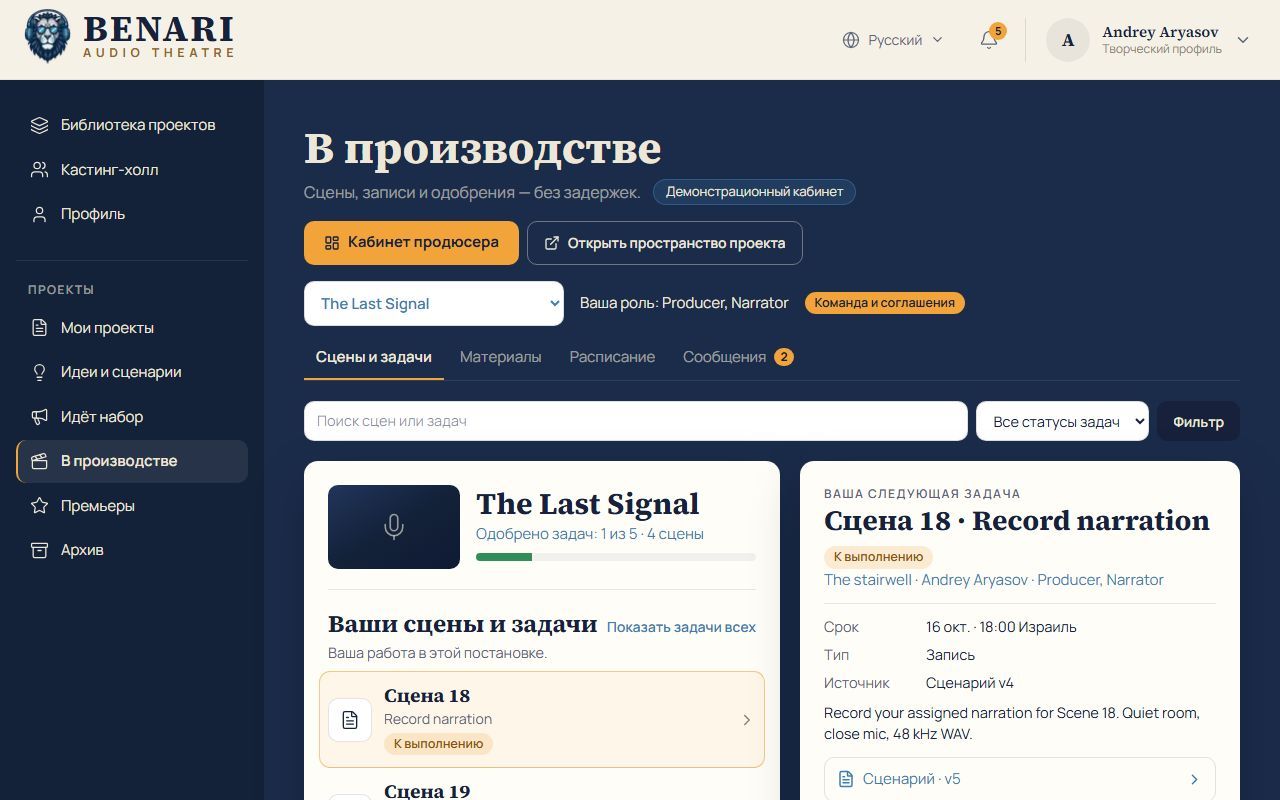
In In Production, select the project at the top; your role and its stage appear beside it. Scenes & Tasks shows progress, your assignments and the next task. Show everyone's tasks opens the team's work. Scenes come from the script linked through Ideas & Scripts.
A task has a type — recording, editing, music, sound design, mixing or other — assignee, deadline, description and source: a specific script version. Status moves To do → In review → Approved. A lead can request changes or cancel it.
To deliver work, upload a take within the task. Takes have versions. The lead listens and approves or requests changes with a comment. See Voice recording for recording preparation.
Materials collects recordings, music and effects, mixes, references and covers. Files show category, scene and uploader. Open or download files without previews. Premiere trailers and session-sheet materials are selected here.
Aim for intelligible speech, clear transitions, comfortable levels and a coherent rhythm: directors and actors refine scenes, then the team chooses takes, builds pauses, combines voice, music and environment and prepares the final master.
Calendar, session sheets and messages
The calendar has month and list views. Choose My schedule or the whole production and select the time zone at the top. Rehearsals, recording sessions and meetings include date, start time, time zone, place or online meeting, participants and preparation.
Reply Attending, Cannot attend or request another time. Other members show Attending, Cannot attend, Requests another time or No response.
The producer workspace Sessions tab lists rehearsals and recordings. Open the Session sheet from the calendar or workspace: one page covering scenes to record, script version, attendees and replies, and materials. At the bottom, Prepare sheet selects scenes and script version. Print / Save as PDF supplies a copy for the session.
Messages is the whole production's shared channel. Start a scene, take or rehearsal discussion from its task, material or event. Mention people by name to notify them.
Producer workspace and invitations
Only project leads can open the workspace from In Production. It brings together existing applications, offers, tasks, sessions, correspondence and partners without storing a separate copy. See Producer workspace for an overview.
Needs your decision lists overdue tasks and auditions, unanswered applications and questions, expiring offers, sessions awaiting replies, partner next steps, commitments and a delayed launch plan. Every item has an action. Coming soon shows sessions and casting deadlines. Invite a participant, find a partner and release readiness are available at the top.
The invitation wizard has five steps: purpose → destination → recipients → text → review.
- Invite to apply for a role: people from candidate search.
- Request an audition: existing applicants.
- Invite to rehearsal or recording: a calendar event.
- Announce to the team: a production message.
Nothing goes out until the explicit send button on the last step. Invitations stay inside BENARI, in Casting Hall and the notification bell; the sent log is below the wizard. You distribute single-use team invitation links yourself.
Funding, partners and secret links
Funding & Resources separates money needed, pledged, agreed, received and still to find. Received means money that has actually arrived; promises do not count as receipts. Amounts are in pounds; non-cash help is separate.
Give needs an amount and deadline: funding for a stage, studio hours, equipment, music recording, editing/mixing, translation, promotion or a premiere venue. Partners can be people or organisations. Record type, country, language, decision maker, restrictions, blocker, contact, next step and date. Asked not to be contacted removes the partner from reminders.
Score five criteria 0–2: topic fit, audience fit, a problem you solve, realistic contribution and a working contact. Record any blocker separately.
Stages are found → researched → approach ready → sent → negotiations → agreement → delivery → report / renewal; Later and Declined sit aside.
The studio drafts an initial email, reminder, final reminder and conversation summary. Copy and send these through your own email. Email sent records contact and moves the stage forward only. Record actual receipts and dated commitments such as mentions, a logo or a report.
A Partner package is a proposal behind a secret link; without sign-in it exposes only the package and production title. A Partner report uses a similar link for completed commitments. Links are long and unguessable but accessible to anyone who holds them. Close access at any time. Reopening creates a new link; the old one stays closed.
Press kit and launch plan
In Promotion, assemble a kit for an editor, partner or participant: title and logline, genre, language, duration, status and date, cover, synopsis, names, a 60-second trailer and other relevant materials. In project: … points to existing information, but you mark items complete yourself.
The launch plan has four milestones: 3 weeks before, 2 weeks before, 1 week before and premiere + 7 days. Until the exact date is assigned, dates use the estimated premiere. Missed milestones appear under Needs your decision.
Give each partner and channel a separate UTM-tagged link. The studio does not yet count tagged-link visits: write No data in partner reports when no measurements exist. Communities and media — book clubs, libraries, cultural centres, press and podcasts — are stored as partners in Funding.
Prepare the premiere and release the production
In the project's Premiere tab, write one or two listener-facing sentences, choose up to six genres and the audio language. Set an estimated month visible to candidates. BENARI assigns the exact date. To select a trailer or extract, first upload a mix or short recording to In Production → Materials.
- Review the seven readiness conditions in the project overview and complete the team's actions.
- Deliver the master to BENARI, which creates and reviews the edition.
- BENARI sets the date; the page appears under Premieres → Coming soon for studio users.
- On premiere day, listening opens on the release page under that edition's terms.
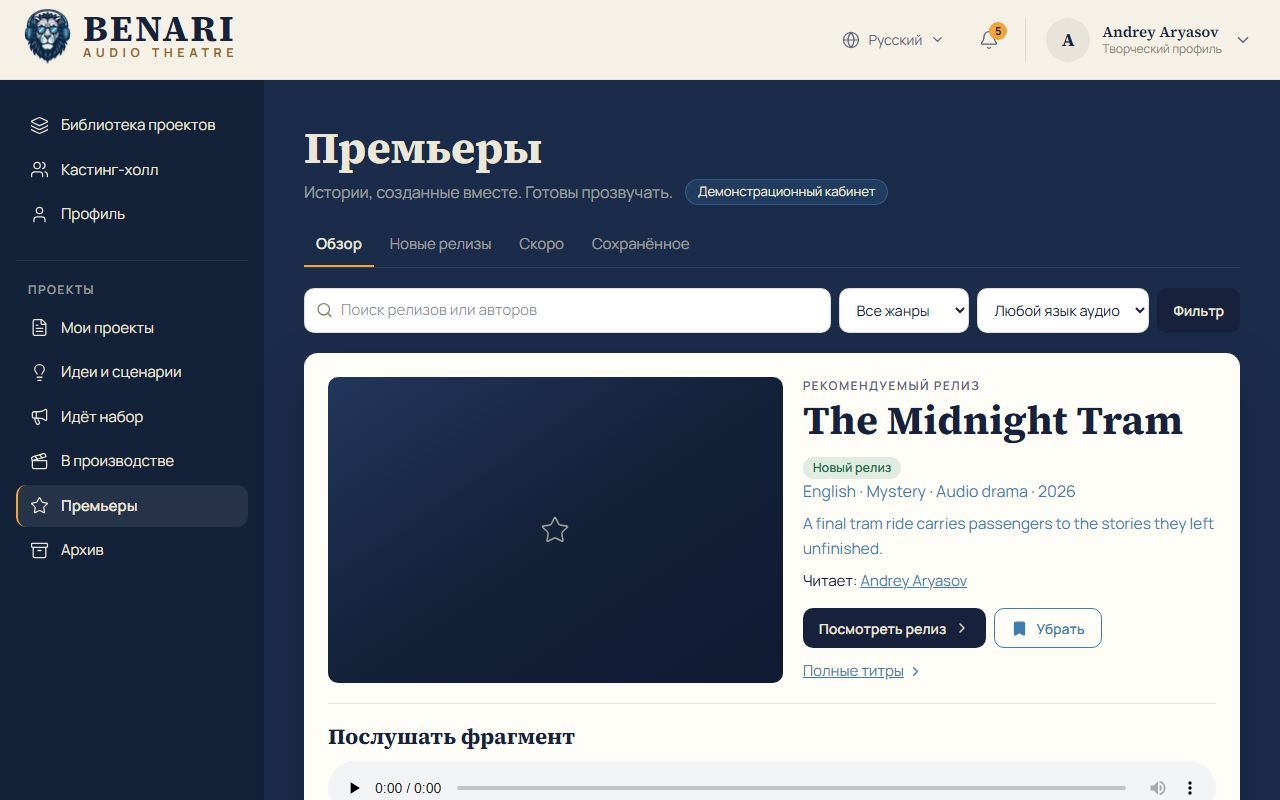
Premieres has Overview, New releases, Coming soon and Saved, with release/author search and genre/audio-language filters. Each release offers an extract, full confirmed credits, View release and Save.
For the BENARI team: VikiSpace → Catalogue & Content → Audio Theatre is unavailable to studio participants. Search productions by title and stage. Cards show team, casting status, premiere date or unassigned, premiere-page completion, linked edition and creation date. Save stage changes the production stage. Set premiere date/time with a time zone — London, Israel, Moscow, Berlin or New York — and link or unlink the BENARI catalogue edition here. Changes immediately appear in the project header, release condition and Premieres.
After release the production remains in the catalogue alongside books and other audio. Sequels, episodes and other language versions require separate arrangements. Revenue depends on quality, demand and audience work.
Access, common questions and terms
| Material | Audience |
|---|---|
| Open calls and public project face | Everyone, including guests and search engines. |
| Profiles and candidate search | Your separate settings apply; search hides contacts, guests cannot see profiles. |
| Documents, ideas and scripts | Owner only initially; then according to sharing or project links. |
| Application | You and casting leads; drafts are yours alone. |
| Casting notes and draft offers | Only the relevant casting or project leads. |
| Team, credits, agreements, economics | Production members; only confirmed credits are public. |
| Producer workspace | Project leads only. |
| Partner package and report | Anyone holding the active secret link. |
| Archive | Only you. |
Accepted on your phone, but still open on the computer? Refresh: state is shared across devices. Repeating confirmation is harmless; the platform reports the existing decision. Extra roles add to your current ones.
Missing role? Check the project, In Production and credit confirmation. Missing mobile button? Scroll down. No link image? Copy from Share and refresh the preview cache. Cannot delete a call or edit a sent offer? Close/reopen calls; make a new offer version. Who schedules the premiere and sends partner emails? BENARI sets the date after review; you send partner emails. Invitations and audition requests stay inside BENARI; production email notifications require opt-in.
Glossary: project/production: an audio drama with its team and documents; company: all participants; call: a role announcement; role type: lead, supporting or episodic; shortlist: serious candidates; audition: a short recording requested by the team; role offer: versioned personal terms; lead: a member with management permission; company fund: the shared portion of net ticket revenue; fund recipient: the lead who pays shares; performer consent: each participant's accepted document; platform licence: BENARI's right to present the work; source work: original text and rights; master: the finished mix; edition: catalogue entry through which people listen; take: a recorded task version; session: rehearsal or recording; session sheet: its plan; press kit: materials for media and partners; UTM: a source tag in a link; secret link: revocable access without sign-in; VikiSpace: BENARI team's workspace.